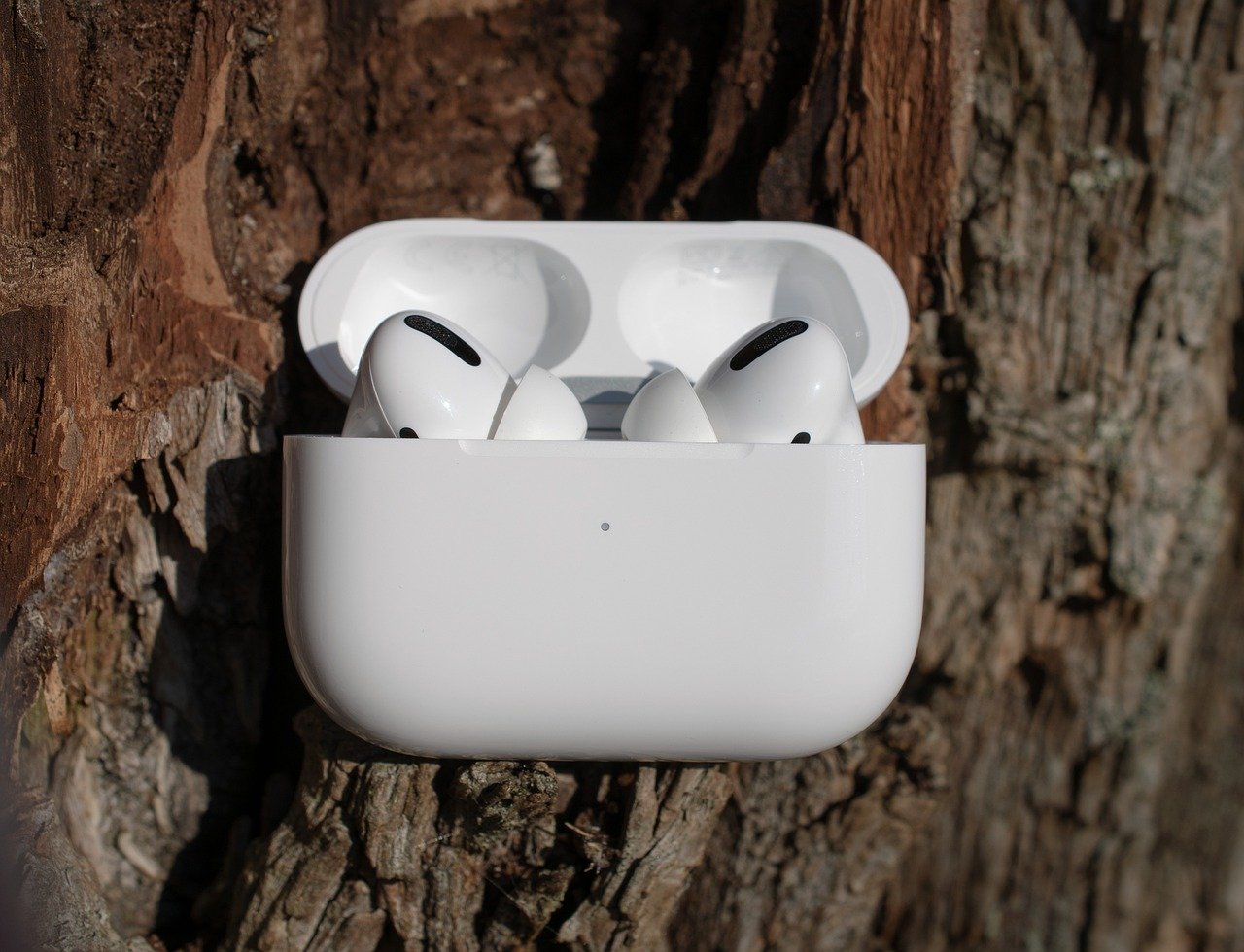
How to Connect AirPods to your Laptop
Connecting AirPods to a laptop is straightforward and works similarly to connecting any Bluetooth device. Here's how you can do it:
For Windows Laptop:1. Turn on Bluetooth:
o Go to Start > Settings > Devices > Bluetooth & other devices.
o Toggle Bluetooth to "On."
2. Put AirPods in Pairing Mode:
o Open the AirPods case (with AirPods inside).
o Press and hold the setup button on the back of the case until the LED light on the front starts blinking white.
3. Pair AirPods with Laptop:
o In the Bluetooth settings, click Add Bluetooth or another device.
o Select Bluetooth from the list of device types.
o Your AirPods should appear in the list (e.g., "AirPods Pro" or "AirPods").
o Select your AirPods, and they should connect automatically.
4. Confirm Connection:
o You’ll see a confirmation message once paired.
o The AirPods will now appear as a playback device in your audio settings.
For macOS Laptop:
1. Turn on Bluetooth:
o Go to System Settings (or System Preferences) > Bluetooth.
o Ensure Bluetooth is "On."
2. Put AirPods in Pairing Mode:
o Open the AirPods case.
o Press and hold the setup button on the back of the case until the LED starts blinking white.
3. Pair AirPods with Mac:
o In Bluetooth settings, look for your AirPods in the list of available devices.
o Click Connect next to your AirPods.
4. Set AirPods as Audio Output:
o Once connected, go to System Settings > Sound.
o Select your AirPods under "Output."
Troubleshooting Tips:
• AirPods not showing up? Restart Bluetooth on your laptop and try again.
• Connection fails? Reset your AirPods by holding the setup button until the LED flashes amber, then white again, and repeat the pairing process.
• Sound issues? Ensure the AirPods are set as the default audio device in sound settings.
Let me know if you face any challenges!
More Readings